SSGI One by SSGI Benefits
Benefits and service, together.
One place to move your benefits work forward. Employers manage the next steps. Employees follow enrollment and get help. Invited policyholders can view their SSGI policy records and ask our team a question.
Already a client? Start your customer-service request in SSGI One.
Explore SSGI One workspaces
Follow one illustrative enrollment journey: the administrator prepares, the employee reviews, and the SSGI team helps with the next question. Screens use separate fictional examples, not a shared live record.
01 · Prepare the invitation
See the work that needs your attention.
Enrollment progress, employee records and requests, with your SSGI team alongside you throughout the year.
- The useful outcome
- A visible list of the enrollment work and requests that need attention.
- Who owns the next step
- The authorized employer administrator reviews the work and confirms what happens next.
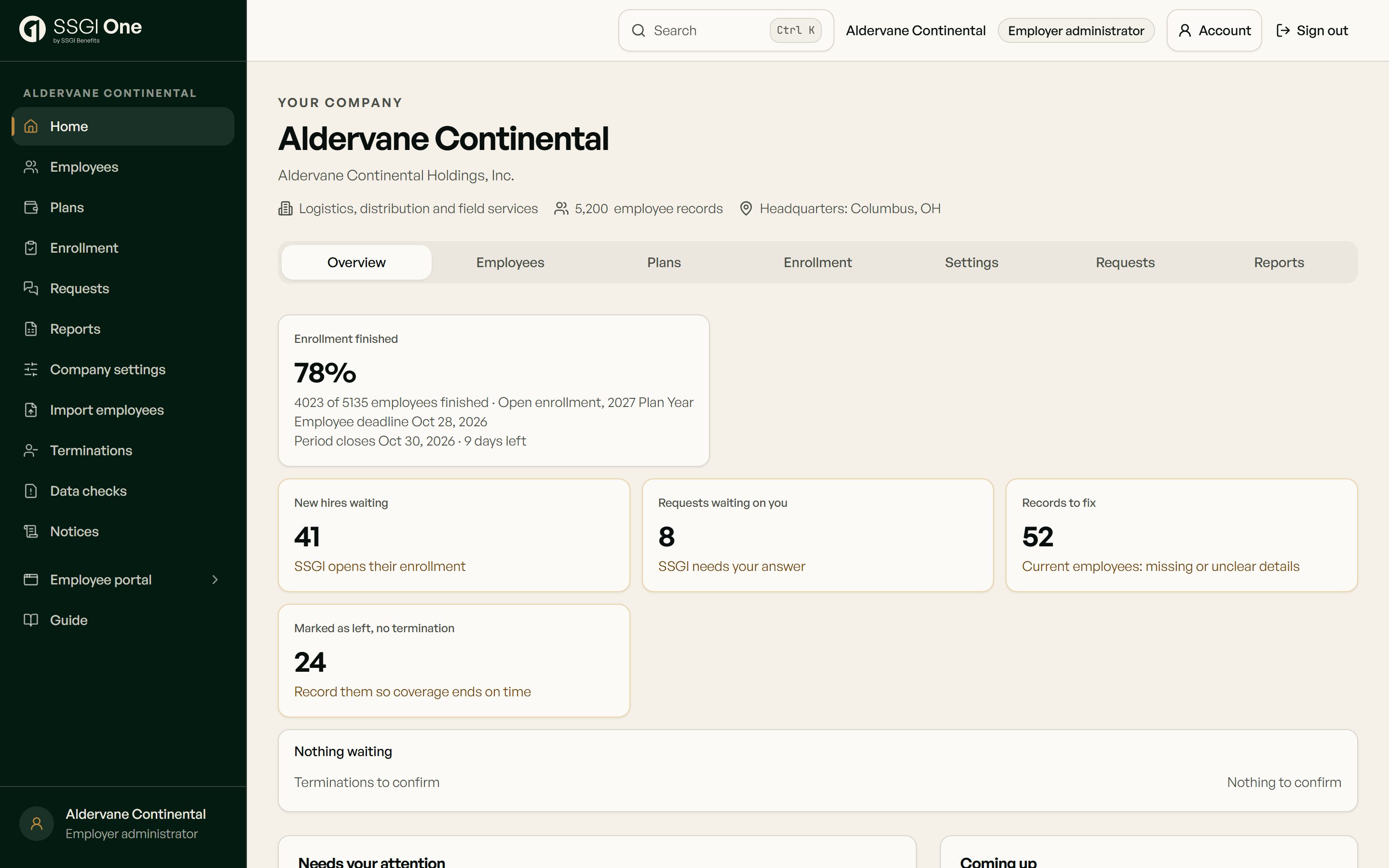
SSGI One · Public tools in action
From a benefits question
to a useful next step.
Choose an employer question. Inspect the sources. Prepare a conversation with the people responsible.
- 1Choose a question
- 2Inspect sources
- 3Prepare a conversation
Your public review
“Where should a new hire begin?”
Published sources, not a generated AI answer. No employee information is needed.
How AI connects
Your private benefits account stays separate. This is public search, not a generated AI answer. Compatible browser AI tools can search this website and open public samples through WebMCP. Your question stays in this tab; the browser loads a public index. Private SSGI One connections require their own sign-in and permissions.
Explore connection optionsFollow this question through an illustrative handoff
SSGI One · An employer experience
Anonymous illustrative journey · Fictional data. Follow one benefits question from guidance to human review.
- 1. The question
- 2. Useful guidance
- 3. Human review
- 4. Follow-through
Step 1 of 4
An employer question needs a next step.
A person at an anonymous example employer has a benefits question. Start with published guidance, then identify the question that needs a person.
One question, carried forward
Benefits discussion question
“Where should a new hire begin?”
- Current owner in this example
- Employer representative
- Example status
- Question identified
- Question identified
An explanation of the experience, not a live product screen or service request. No personal data is entered or sent.
Explore the enrollment samples and service handoff
02 · Explore the work
See the next step from either side.
Follow sample enrollment questions through a three-step review. No employee record is changed.
Open the employer sample03 · Keep people in the loop
A conversation has an owner.
For your actual benefits work, use your SSGI One request to keep the question, requested documents and replies together. Our team can clarify the next step for your situation.
This public example does not send a service request or change an enrollment.
Meet the service behind the workspaceSee SSGI One in action
Start with the overview. Go deeper when you’re ready.
Choose a tour below. Each uses fictional sample data.
SSGI One: a two-minute overview.
See how SSGI One brings employers, employees and our agency together in one place.
Shown with sample data.
Open video in new tabYour employer workspace.
See enrollment progress, employee records and requests, with your SSGI team alongside you throughout the year.
For HR
See enrollment progress, employee records and requests that need your attention.
For employees
Find coverage information, enrollment steps and a direct route to the SSGI team.
For your organization
Discuss your locations, workforce and optional AI integrations as part of the implementation plan.
Explore a sample workspaceChoose employers or employees and follow a task at your own pace.
A closer look
See where the next step lives.
Choose a role, then follow a task through the highlighted sample screen. This is a guided preview; it does not open a client account or send a request. Move through the steps at your own pace, then explore the service that fits your role.
Try this sample task
Fictional task · Employer view
Review enrollment progress
Choose a sample employee to identify the work that still needs attention.
Fictional interaction, not a live account. Available screens and workflows depend on your implementation. Nothing here changes employee records or sends a message.
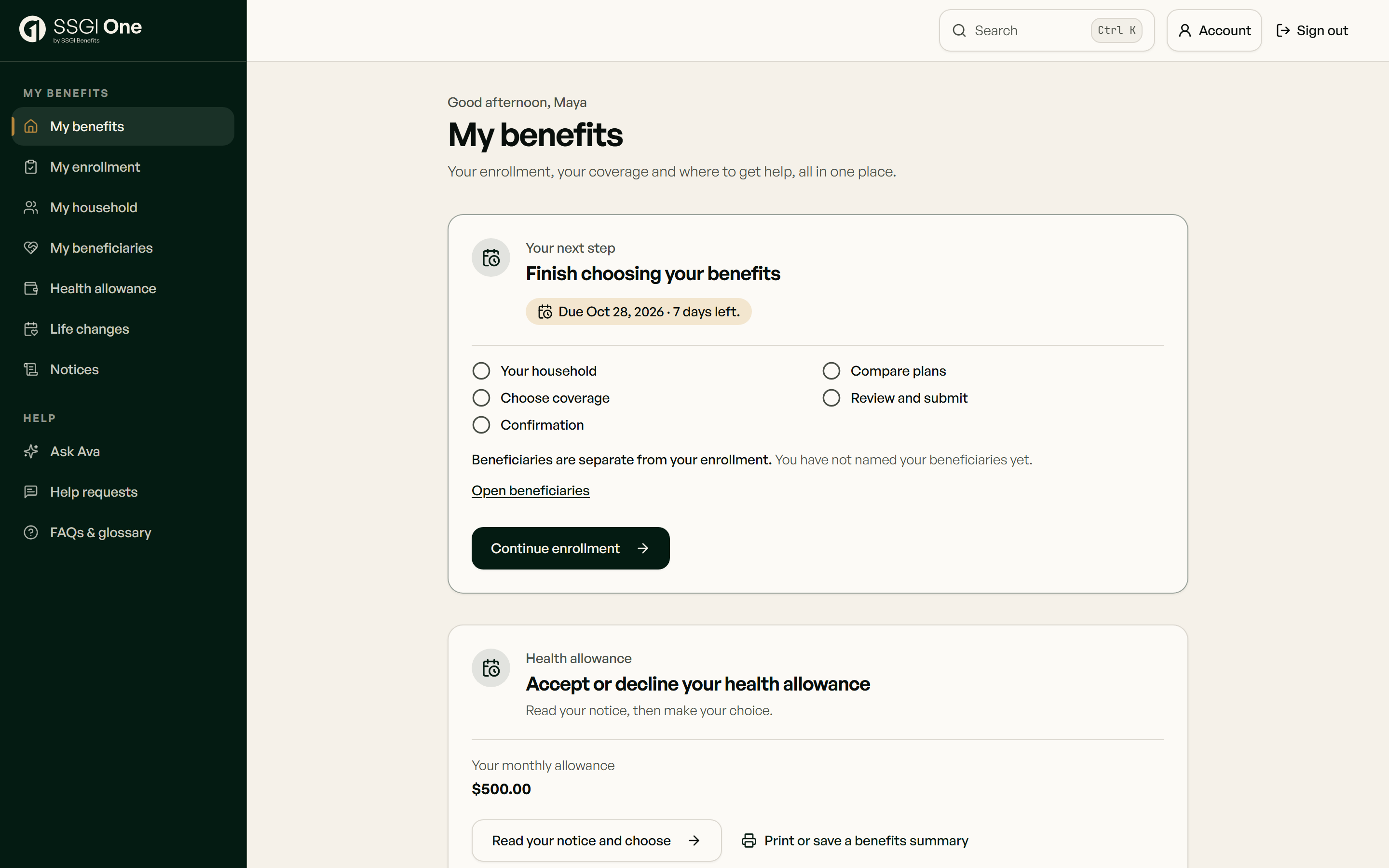
From invitation to enrollment.
Follow your employer’s enrollment steps in SSGI One, including new-hire enrollment, life-event requests and waivers.
Invite
Use the invitation or enrollment instructions provided for your employer to find your assigned steps in the benefits app.
Complete
Sign in to the benefits app, review the choices provided for your employer and complete the requested steps.
Follow through
Return to your benefits home to see the next step, or send your SSGI team a question from the app.
Return to coverage information and your next steps after enrollment. Explore the sample employee workspace below.
See how to contact SSGIView the employee workspace
For individuals & families
Your policies with SSGI.
A view of the Medicare, individual health and life policies in your SSGI agency’s records, with a direct way to ask for help.
- See your policy records. View the carrier, plan, status, policy number and key dates. These records are view only.
- Keep the question together. Ask SSGI a question, read the answer and reply when our team asks for more information.
- Share requested documents. Send documents with a service request. You can see document names on file; contact SSGI client service for a copy.
Start with your invitation.
SSGI sends you an invitation link. Sign in with Microsoft, Apple, Google or a passkey, then connect that sign-in to your SSGI record. There is no self-signup.
This page does not enroll, renew, change or take payment for a policy. Document downloads and ID cards are not available in the app.


Individual & family
Your policies with SSGI
- View only
Medicare
Carrier · plan · key dates
- View only
Individual health
Carrier · plan · key dates
- View only
Life insurance
Carrier · plan · key dates
Make the allowance process easier to follow.
Employees use the same login for group benefits and ICHRA. SSGI One brings allowance acceptance, proof of coverage and reimbursement requests into one place, with status and a route to your SSGI team.
- Review and accept the allowance offered by your employer.
- Add the requested proof of individual coverage.
- Prepare a reimbursement request and follow its status.
- Ask your SSGI team when you need help with the next step.
The portal supports the process; eligibility, documentation, plan rules and the agreed administration arrangement still apply. Submitting a request is not a promise of reimbursement.
Read the employer decision guideOne request. One conversation.
Employers, employees and invited policyholders can ask for help, share requested documents and follow replies. Your view depends on the access arranged by SSGI.
Ask in one place
Start a benefits question or service request from your signed-in workspace.
Share what is needed
Use the request’s document controls for the materials your SSGI team asks for.
See the next step
Follow status and replies in the same request. Use the benefits app as the starting point for customer-service help.
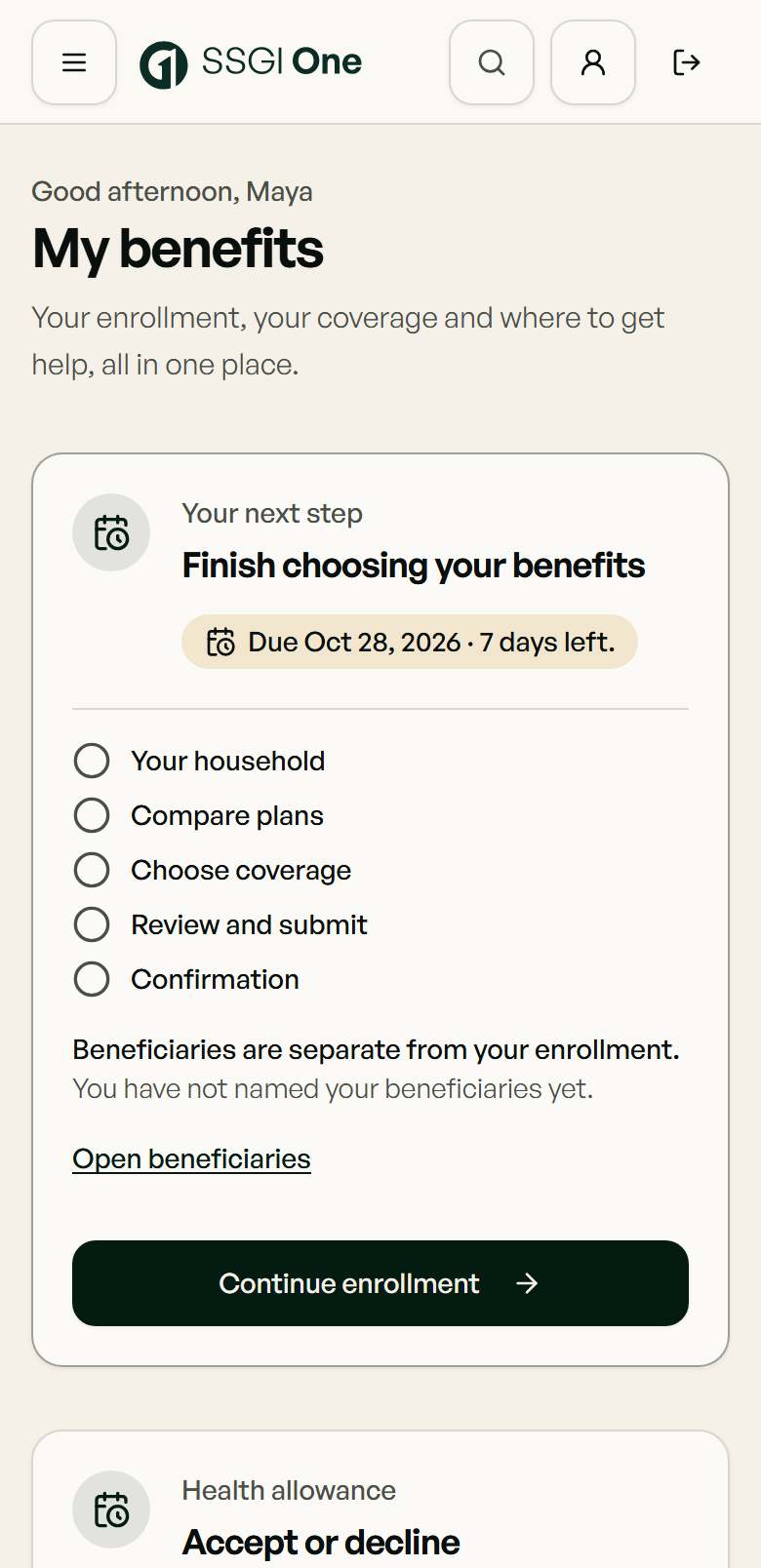
Your benefits portal, on your phone.
Open SSGI One at SSGIone.com in your phone’s browser, or add it to your Home Screen for a familiar place to return. Sign in to see your benefits and contact the SSGI team.
iPhone · Safari
Open the portal in Safari. Use Share, choose Add to Home Screen, turn on Open as Web App if offered, then tap Add.
Apple’s Home Screen guide (opens in a new tab)Android · Chrome
Open the portal in Chrome. In the More menu, choose Install and create shortcut, then Create shortcut and Add. Menu labels can vary by browser version.
Google’s shortcut guide (opens in a new tab)This opens the web portal; internet access and sign-in are required. No app-store download is needed.
Your AI tools. Connected to the right workspace.
Use compatible AI tools through MCP for public planning or authorized SSGI One work. Each connection has its own access and permissions.
Explore the people and permissions
Choose a participant to see the relevant access and responsibility.
01 · Public website
Guides, aggregate planning and fictional examples
02 · SSGI One
Separate sign-in and assigned permissions
03 · Responsible people
Review, advice and required approvals
An explanation of the model, not a live account connection.
Employer connection
The employer sets the direction.
Administrators work within their assigned workspace access. Your organization remains responsible for its decisions and approvals.
- Access
- Authorized employer account
- Responsibility
- Employer decisions and account permissions
How the public technology fits together
- WebMCP · actions in a compatible browser
- Public search and fictional samples can be opened in this page. The visitor can inspect the result. Browser support is required; ordinary controls remain available.
- MCP · public planning tools
- Compatible tools can use the published planning interface. This is separate from private SSGI One account access.
- Internet Computer · public planning API
- The published architecture identifies a read-only public planning canister for aggregate calculations and checked public-source passages.
- Human review · decisions and next steps
- A public tool result does not authorize a benefits change. Account permissions, agreed service responsibilities and provider requirements still apply. Try the public task
Map your current setup
Start with what your team already uses.
Choose the work to discuss. The map separates people, systems and responsibilities; it does not create a connection.
Your organization
An existing HR or payroll system
Your team confirms the authoritative records, permissions and decisions.
SSGI and SSGI One
Enrollment and eligibility
Agree the service work, workspace access and handoffs before implementation.
Other providers
Confirm the connection
HR, payroll and carrier providers confirm compatibility, requirements and processing within their responsibility.
Planning view only. No system is connected; availability, permissions, data handling and any costs require a separate review.
Connection options and permissions
Public planning tools
Use the website’s public MCP tools for general planning resources and aggregate calculations. They do not provide access to private benefits records or website editing.
Explore planning resourcesAuthorized SSGI One access
Connect compatible AI tools to SSGI One within the access available to your platform account. Your connection and permissions determine what is available.
Open SSGI One (opens in a new tab)Your organization’s workflow
Discuss knowledge assistance, service triage or workflow support as a separately scoped integration, with access and responsibilities agreed before implementation.
Discuss an integrationLicensed advice, coverage decisions and actions requiring authorization stay with the responsible people. Organization-specific connections are reviewed separately, with access, responsibilities and any costs agreed before implementation.
SSGI One by SSGI Benefits
Already have access? Sign in to find your workspace. Looking for a benefits partner? Tell us what you need.