
Benefits work, connected.
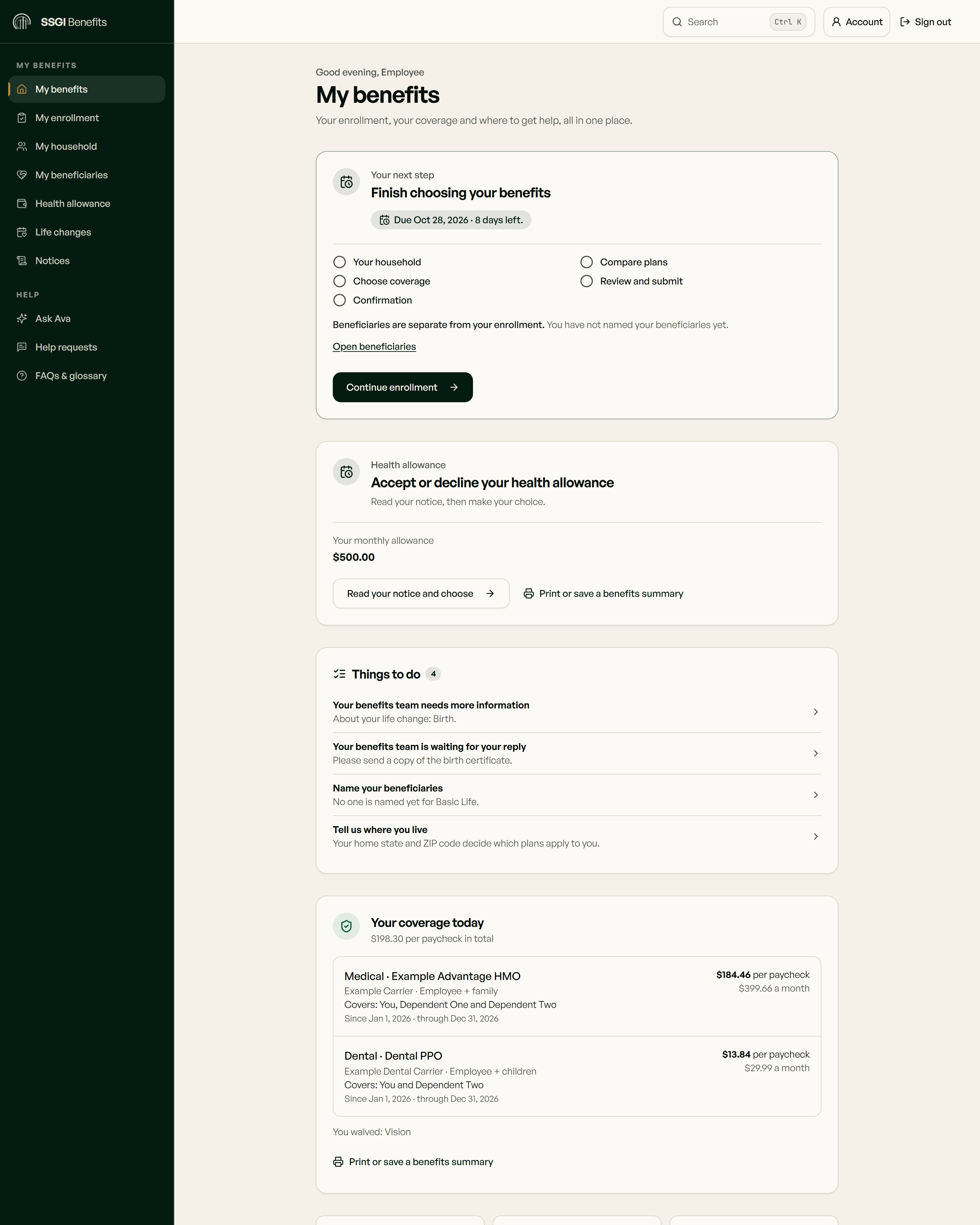
A service team and a platform your people can use.
Choosing benefits is the beginning. SSGI connects your benefits strategy with an employer workspace, employee enrollment and a shared place to ask for help throughout the year.
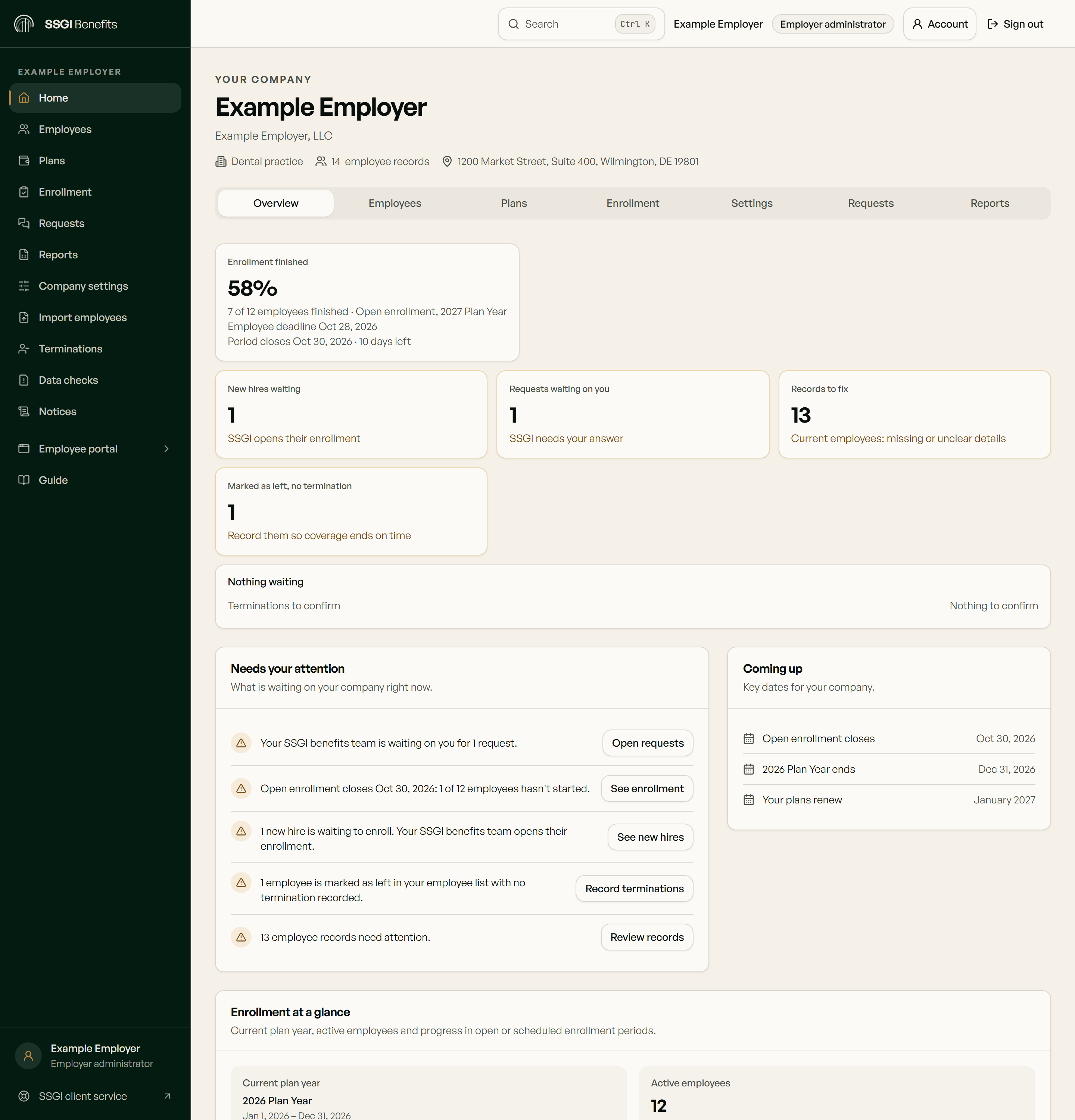
For HR
See enrollment progress, employee records and requests that need your attention.
For employees
Find coverage information, enrollment steps and a direct route to the SSGI team.
For your organization
Discuss your locations, workforce and optional AI integrations as part of the implementation plan.
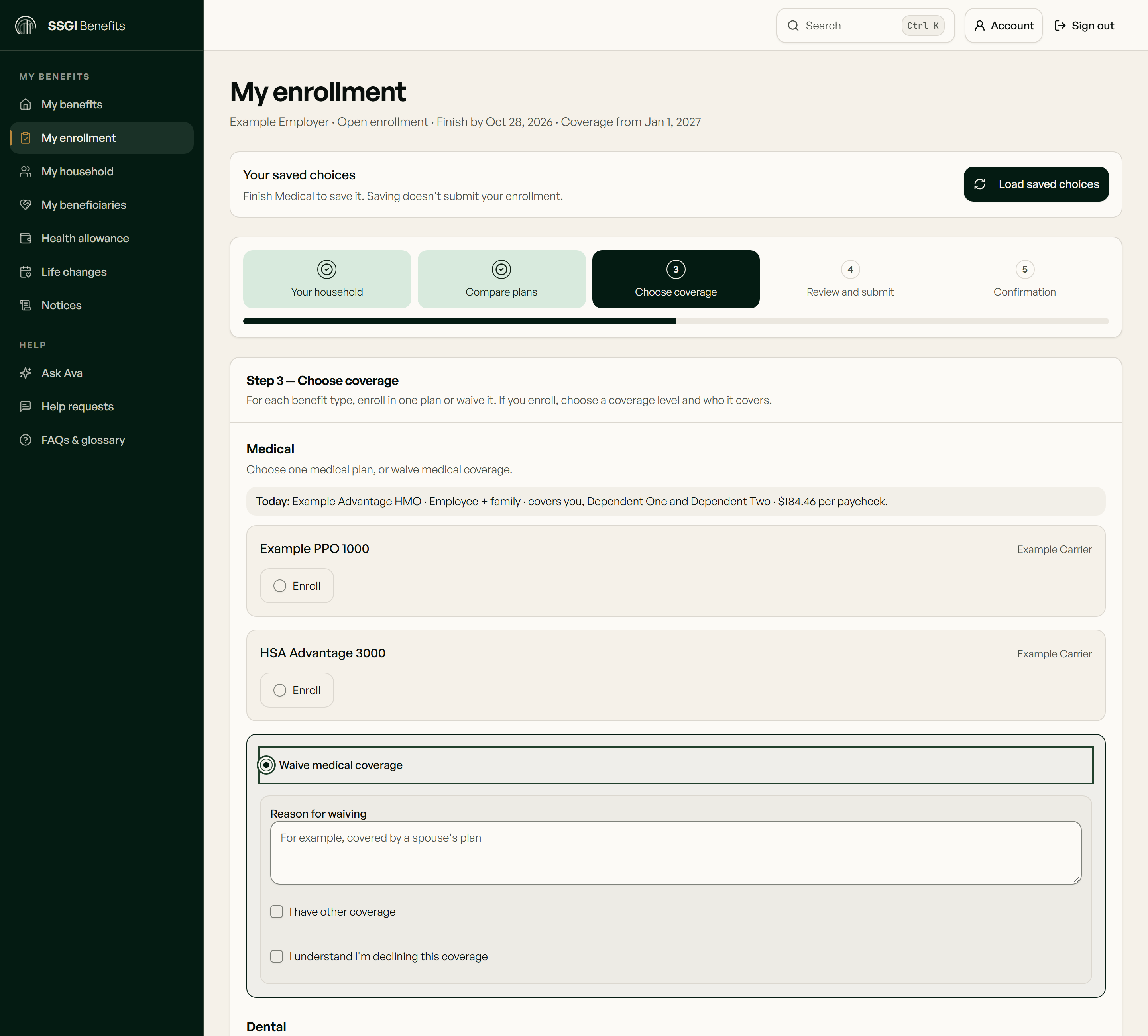
Make the next step easy to find.
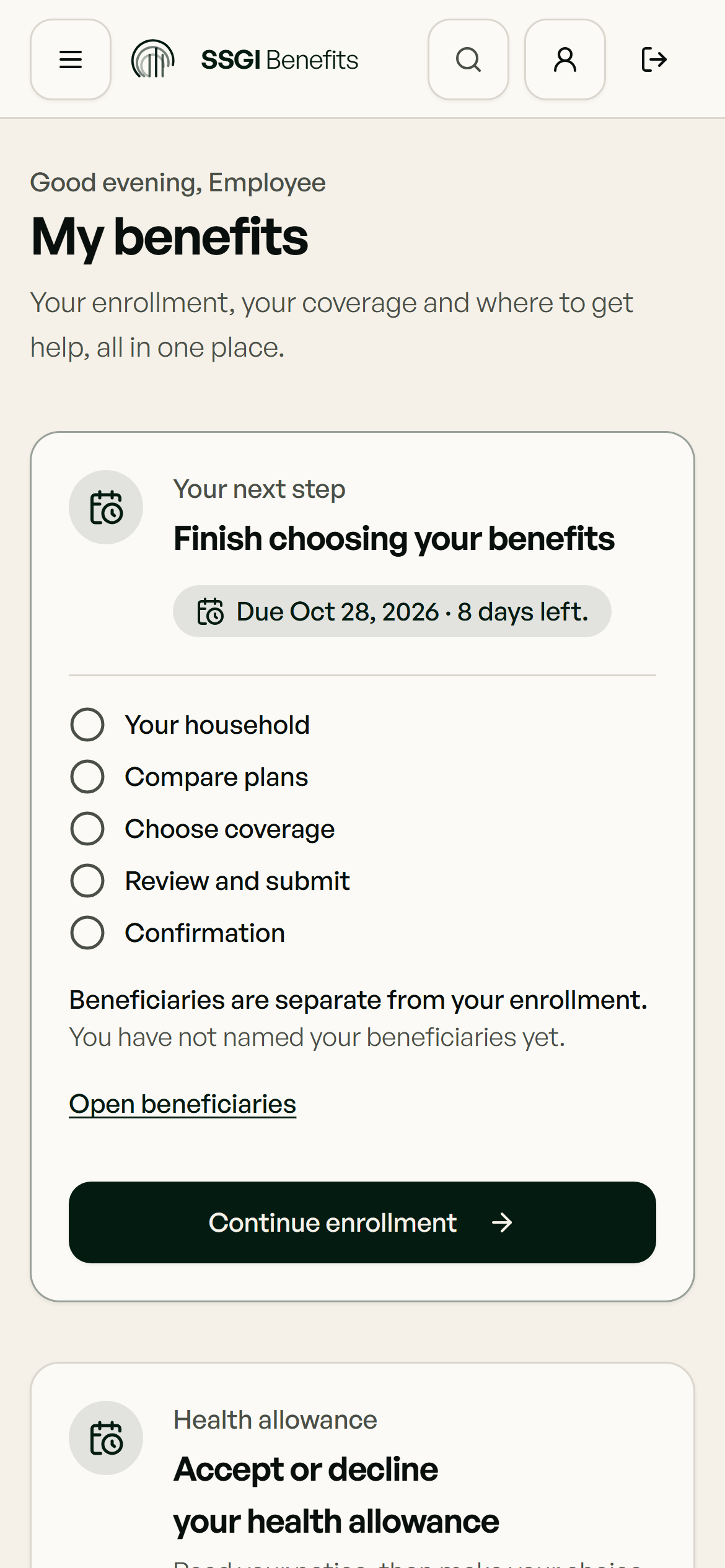
Employees open their SSGI Benefits Platform invitation, sign in and follow the enrollment steps for their employer. New hires, enrollment windows, life-event requests and waivers belong in the same experience.
Invite
Use the invitation or enrollment instructions provided for your employer to find your assigned steps in the benefits app.
Complete
Sign in to the benefits app, review the choices provided for your employer and complete the requested steps.
Follow through
Return to your benefits home to see the next step, or send your SSGI team a question from the app.
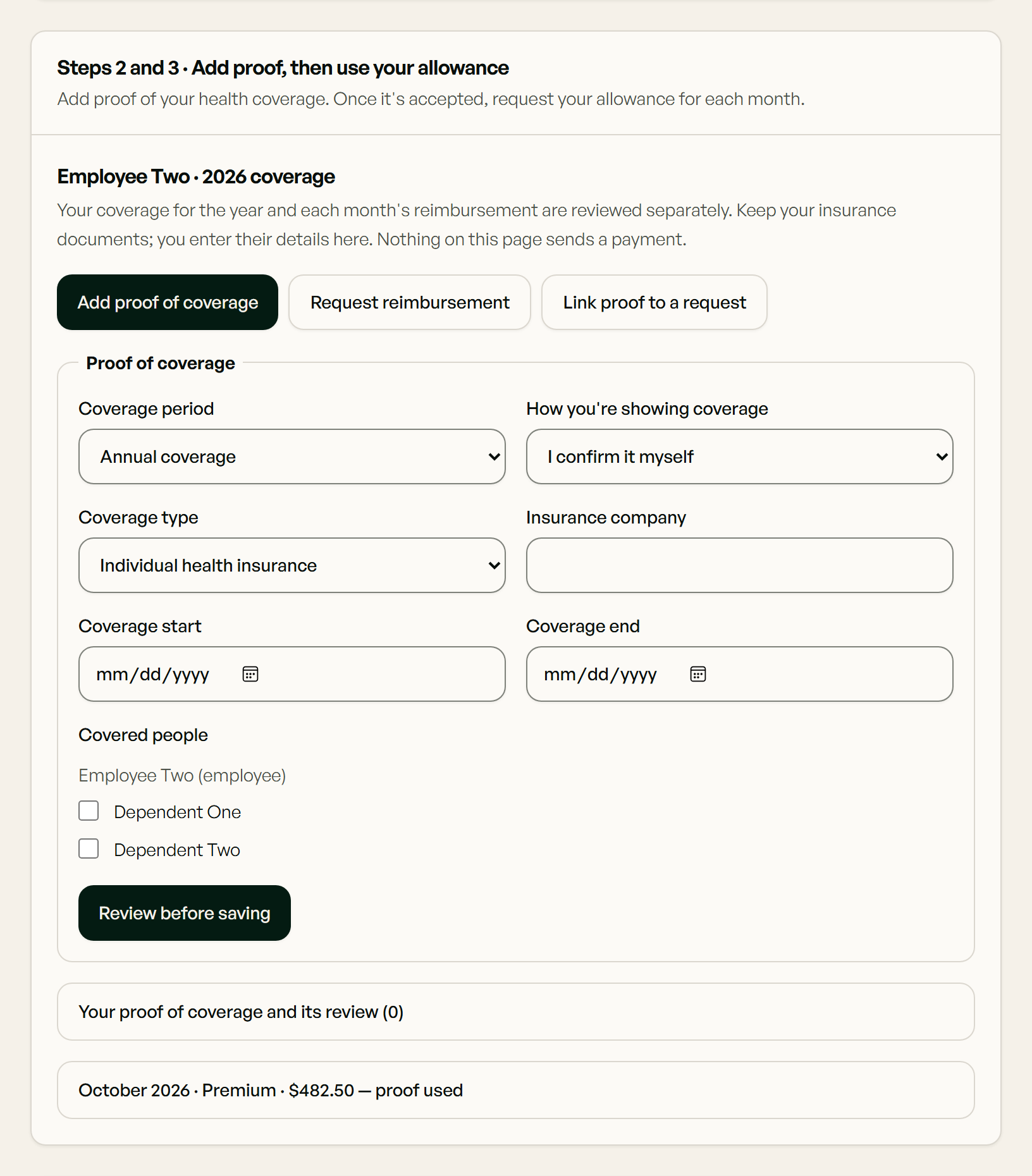
Make the allowance process easier to follow.
Employees use the same login for group benefits and ICHRA. The platform brings allowance acceptance, proof of coverage and reimbursement requests into one place, with status and a route to your SSGI team.
- Review and accept the allowance offered by your employer.
- Add the requested proof of individual coverage.
- Prepare a reimbursement request and follow its status.
- Ask your SSGI team when you need help with the next step.
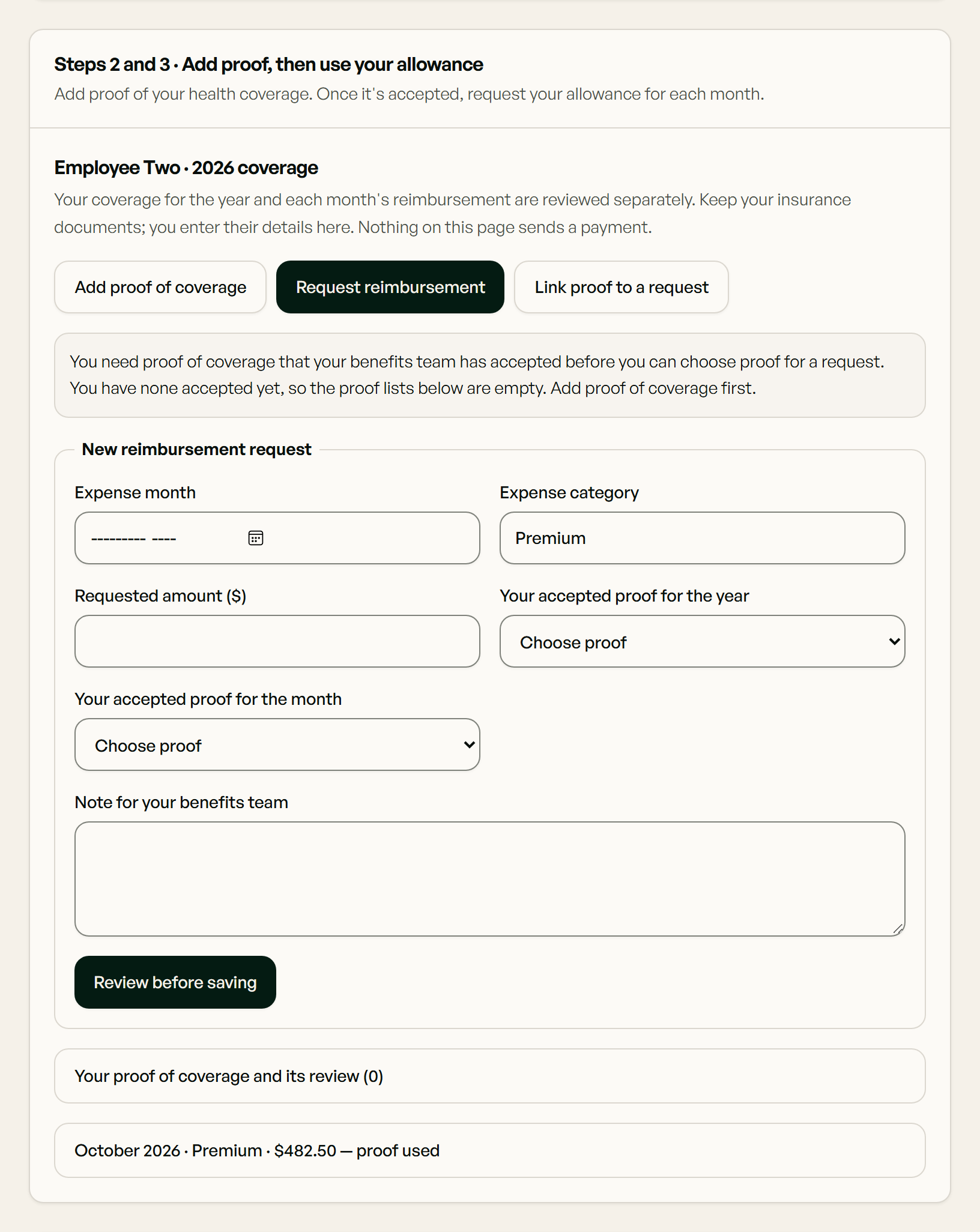
The portal supports the process; eligibility, documentation, plan rules and the agreed administration arrangement still apply. Submitting a request is not a promise of reimbursement.
Contact SSGI. Keep the conversation with the request.
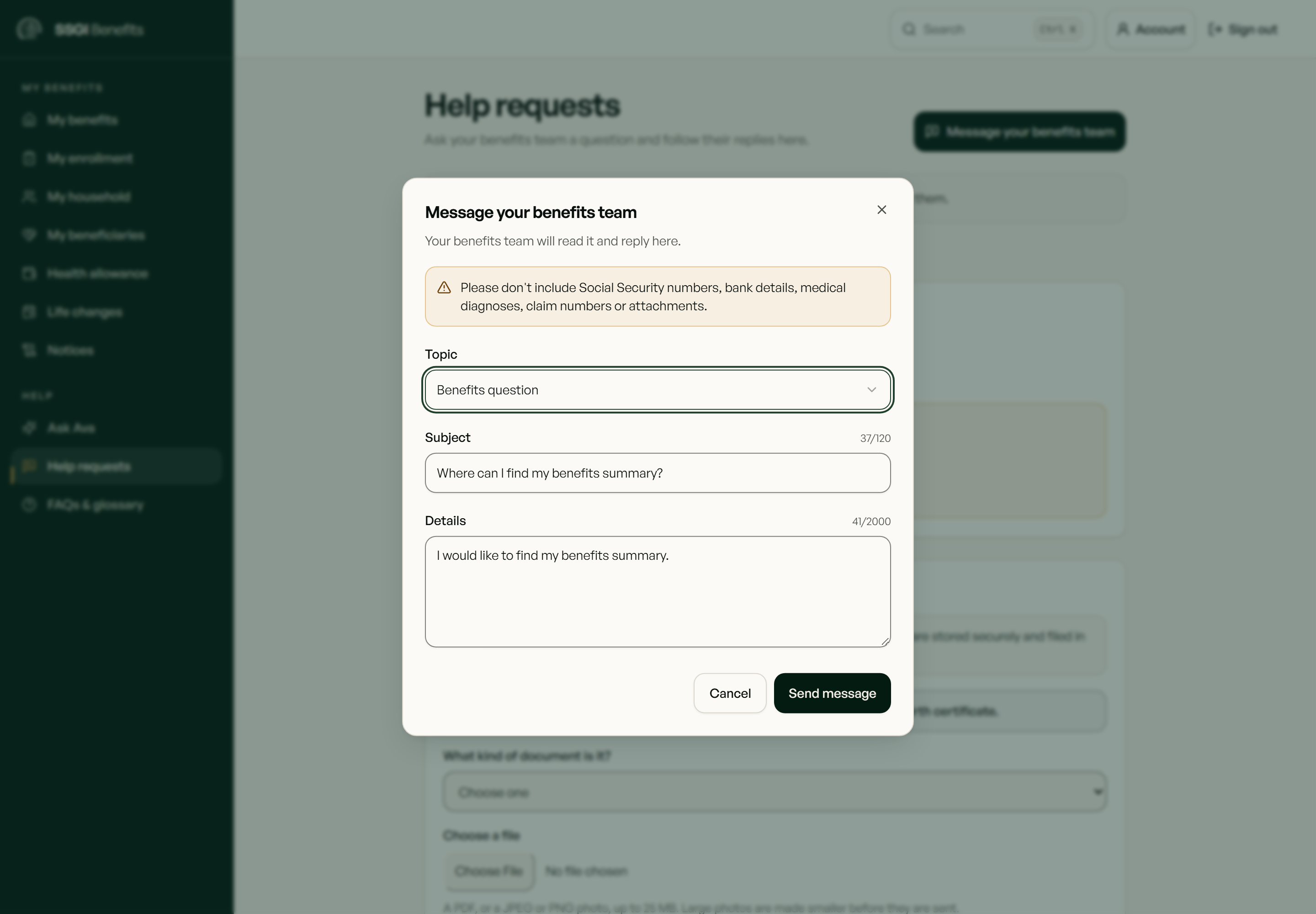
Employees and employer admins use app.ssgibenefits.com to contact the SSGI team, send requests and documents, and see status and replies. The portal brings the details of your request together so you can return to the same conversation.
Ask in one place
Start a benefits question or service request from your signed-in workspace.
Share what is needed
Use the request’s document controls for the materials your SSGI team asks for.
See the next step
Follow status and replies in the same request. Use the benefits app as the starting point for customer-service help.
Your benefits portal, on your phone.
Use app.ssgibenefits.com in your phone’s browser, or add it to your Home Screen for a familiar place to return. Sign in to see your benefits and contact the SSGI team.
iPhone · Safari
Open the portal in Safari. Use Share, choose Add to Home Screen, turn on Open as Web App if offered, then tap Add.
Apple’s Home Screen guide (opens in a new tab)Android · Chrome
Open the portal in Chrome. In the More menu, choose Install and create shortcut, then Create shortcut and Add. Menu labels can vary by browser version.
Google’s shortcut guide (opens in a new tab)This opens the web portal; internet access and sign-in are required. No app-store download is needed.
Your AI tools. A conversation about the right workflow.
Bring your preferred AI tools into the benefits discussion. We can review the workflow you want to improve and the requirements for a separately scoped integration.
Discuss AI integration requirements